If you are connecting a Shopify store to a third-party logistics provider, there is a reasonable chance that 3PL is running Extensiv (formerly 3PL Central) as its warehouse management system. More than 1,500 3PLs worldwide use Extensiv WMS. Understanding how the Shopify-Extensiv integration actually works — and where it breaks — is the difference between a smooth launch and a week of troubleshooting failed orders.
This guide covers the complete Shopify to Extensiv integration: what Extensiv is, how the data flow works, SKU mapping requirements, ship method setup, inventory sync, UAT testing, and the most common integration failures. Whether you are setting this up yourself or managing a 3PL partner who uses Extensiv, this is the technical context you need.
What Is Extensiv?
Extensiv is the rebrand of 3PL Central, which changed its name in May 2022 after acquiring Skubana, Scout Software, and CartRover. The combined entity created a more complete supply chain software suite.
The three main products in the Extensiv suite:
- Extensiv 3PL Warehouse Manager (formerly 3PL Central): Cloud WMS used by 3PL operators to manage warehouse operations, client billing, inventory, and order fulfillment. Used by 1,500-plus 3PLs globally.
- Extensiv Order Manager (formerly Skubana): OMS used by high-volume brands to manage orders across multiple channels and warehouses. This is the brand-facing product.
- Extensiv Network Manager: Connects brands to the network of 3PLs running Extensiv WMS — useful for brands evaluating 3PL partners within the ecosystem.
For most Shopify brands, Extensiv is not something they buy directly. It is something they encounter when their chosen 3PL partner runs it. The integration burden falls on the brand and the 3PL together — not on a single managed service provider the way it does with ShipBob.
How the Shopify-Extensiv Integration Works
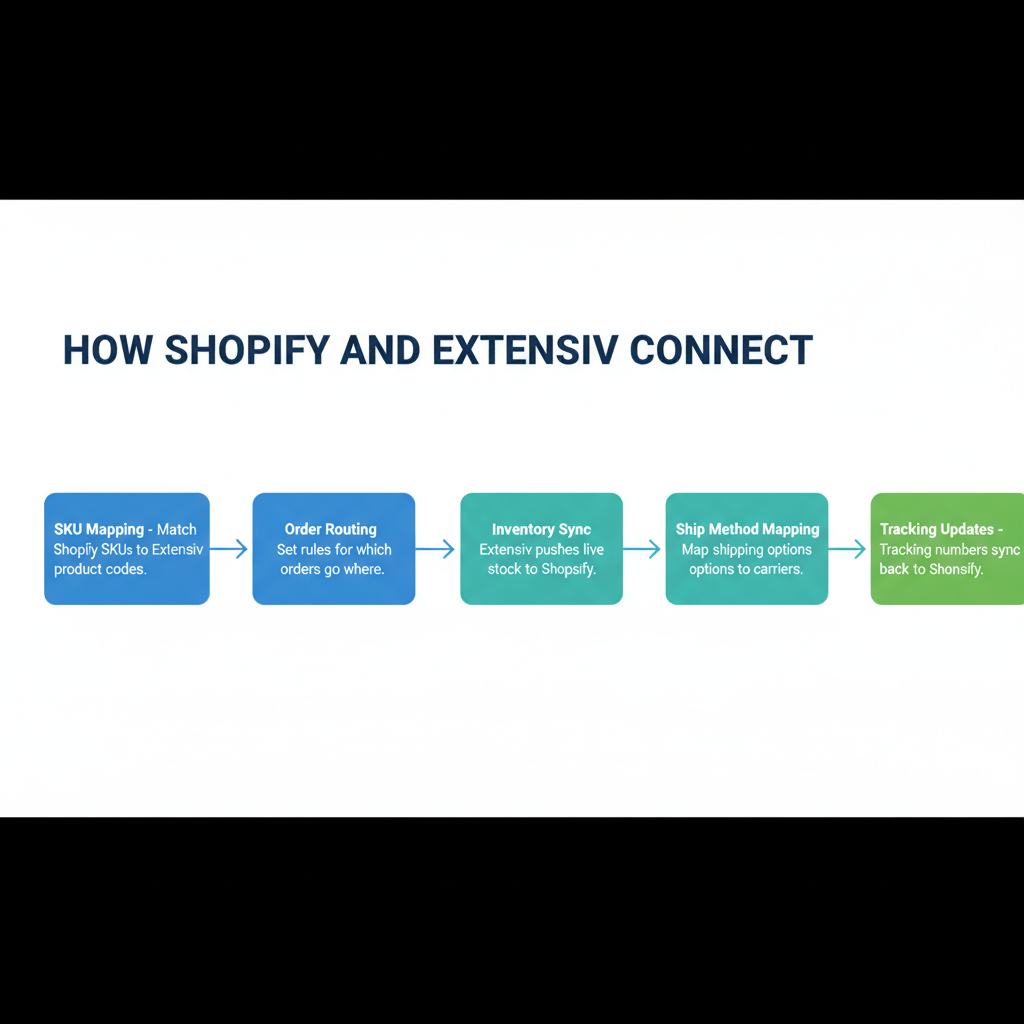
The integration operates through Extensiv Integration Manager, a middleware layer that sits between Shopify and the 3PL Warehouse Manager. Here is the four-step automated cycle:
- Shopify sends new orders to Integration Manager via webhook when payment is confirmed
- Integration Manager validates each order (SKU matching, payment status check, fulfillment status check) and delivers validated orders to the 3PL Warehouse Manager
- The 3PL warehouse team picks, packs, and ships the order; the WMS records a tracking number against the order
- Integration Manager picks up the tracking number and pushes it back to Shopify, marking the order as fulfilled and sending the shipping confirmation to the customer
The setup process requires generating a Shopify private app API key with specific permissions (Read and Write on: Fulfillment services, Inventory, Orders, Product listing, Products), submitting those credentials via Extensiv Professional Services, and retrieving your Shopify Location ID from the admin URL. After credentials are submitted, Extensiv typically returns a DocuSign within one business day and completes Professional Services configuration within 24 to 72 hours. Testing should then be allocated a minimum of five to ten business days.
SKU Mapping: The Most Critical Setup Requirement
SKU mapping failures are the most common source of integration problems, and the most common source of silent failures — orders that appear to process normally in Shopify but never arrive in the WMS.
The fundamental rules:
- Every Shopify product variant must have a SKU that exactly matches a SKU set up in the 3PL Warehouse Manager. SKU is not a required field in Shopify — products can exist without one. If a product has no SKU, the order line item is dropped silently when it arrives in Integration Manager.
- Each variant must have a unique SKU. If multiple variants share the same SKU, Integration Manager sets all of them to the same inventory level, creating immediate inventory inaccuracies.
- SKUs are not retroactively applied to historical orders. If you add a SKU to a product after an order was placed, old orders in Integration Manager must be manually edited to add the SKU before they can be processed.
- The SKU alias feature exists for cases where the Shopify SKU does not match the WMS SKU. If inventory sync is failing for a specific SKU, check the Push Inventory Using Alias field configuration.
Run this pre-launch SKU audit before going live:
- Export all Shopify products and variants. Verify 100 percent have unique SKUs — no blanks, no duplicates.
- Export all products from the 3PL Warehouse Manager. Verify SKU-for-SKU match against the Shopify export.
- Identify bundles. Bundles must be set up as kit-component relationships in the WMS, not as single SKUs that match a Shopify bundle product.
- Confirm all products have been received into a named location in the WMS. A product created in the WMS but not yet received into a physical location will not have inventory to fulfill against.
Order Routing Configuration
By default, Integration Manager pulls orders with fulfillment status equal to “Not Fulfilled” and payment status equal to “Paid.” This is the correct default for most DTC brands — only paid, unfulfilled orders should route to the warehouse.
Additional payment statuses can be enabled explicitly: Authorized, Pending, Partially Fulfilled, Refunded, Partially Refunded. Most brands do not need these enabled, but brands with pre-order or net-terms workflows may need Authorized or Pending status enabled to route orders before payment clears.
One important limitation to understand before launch: tracking number post-back to Shopify is at the order level only, not the line-item level. If the 3PL ships part of an order today and the remainder tomorrow, Shopify will not receive a tracking number until the final shipment is recorded. During the gap, customers will not see a tracking number in their shipping confirmation, which generates support tickets. Address this in SLA negotiation: either get a commitment that orders under a certain size will always ship in a single fulfillment, or prepare your support team for the inquiry pattern.
Inventory Sync Setup
Inventory sync is optional and must be explicitly enabled in the connection settings. When enabled, Integration Manager pulls “Quantity Available” from the WMS and pushes it to Shopify.
An important distinction: Quantity Available is not the same as Quantity On Hand. Available equals on-hand minus quantity already allocated to open orders in the WMS queue. This is the correct number to push to Shopify — it prevents overselling inventory that is already committed to pending orders. Do not be alarmed if the Available figure is lower than what you physically have in the warehouse; the difference is orders in process.
Location assignment is required for inventory sync to function. The Shopify cart connection must be assigned to a specific WMS location. If no location is selected, the system cannot determine which inventory pool to sync from.
Common inventory sync failures:
- SKU not assigned to the WMS location selected in the connection settings
- Inventory tracking not enabled in Shopify at the variant level (must be set per variant, not just at the product level)
- Receiving PO not completed in WMS — new inventory does not appear as Available until a receipt has been formally processed in the WMS
- Duplicate SKUs in Shopify causing inventory overwrite conflicts when the sync runs
Ship Method Mapping
Rather than manually configuring every carrier in the WMS, Extensiv uses Ship Method Mappings to translate the shipping service selected by the customer in Shopify into a defined carrier and service level in the WMS.
Navigation path in the WMS: Orders > Shipping Setups > Manage Ship Method Mappings > Select Customer.
Each mapping entry defines:
- Vendor Key: the exact string value that arrives from Shopify in the order (e.g., “Standard Shipping,” “Expedited,” a specific carrier service code). This must be an exact match — case-sensitive.
- Carrier: the physical carrier (UPS, FedEx, Purolator, Canada Post)
- Mode: the service level (Ground, Express, Priority, Xpresspost)
- Billing Option: Prepaid, Third-Party, or Collect
Ship method mappings are customer-specific — they must be configured separately for each brand account in the WMS. If you are onboarding with a new 3PL that uses Extensiv, confirm that ship method mappings have been fully set up for your account before placing live orders. Unmapped shipping methods result in orders that fail to route to a carrier and sit in the WMS pending manual intervention.
For Canadian brands: ensure Purolator and Canada Post are listed as available carriers in the 3PL account and that the service-level mapping (e.g., Canada Post Xpresspost, Purolator Express) matches what your Shopify checkout offers customers.
User Acceptance Testing (UAT) Process
Do not go live without running structured UAT. The cost of finding integration errors with test orders is zero. The cost of finding them with customer orders is refunds, reshipping, and reputation damage.
The minimum UAT checklist for a Shopify-Extensiv integration:
- Test order creation: Place a low-value test order in Shopify with a real product (with SKU assigned) and verify it appears in Integration Manager within the polling interval.
- SKU resolution test: Confirm the line item resolves to the correct product in the WMS without error or SKU mismatch warning.
- Ship method mapping test: Confirm the shipping service selected in Shopify maps to the correct carrier and service level in the WMS order — not to a generic placeholder or unmapped entry.
- Fulfillment and post-back test: Have the 3PL pick, pack, and ship the test order. Verify the tracking number posts back to Shopify within the expected window and the Shopify order status changes to “Fulfilled.”
- Inventory sync test: Verify that the WMS inventory level change from shipping the test order is reflected in Shopify within the configured sync window. Verify the Available quantity (not On Hand) is what appears in Shopify.
- Error log review: Check the Customer Error Log in Integration Manager for any import failures, SKU validation errors, or ship method mapping warnings during testing.
Allocate five to ten business days for UAT. This is not cautious — it is standard. Testing one scenario per day with enough time to identify patterns, communicate with the 3PL team, and retest is the minimum responsible timeline.
Common Integration Issues and Fixes
Here is a quick reference for the most frequent issues and how to resolve them:
- Orders not appearing in Integration Manager: Product has no SKU in Shopify. Add SKU to all product variants in Shopify admin.
- Inventory not syncing: Inventory tracking not enabled per variant. Enable per-variant tracking in Shopify admin.
- Wrong carrier assigned to fulfilled orders: Ship method mapping not configured or Vendor Key mismatch. Audit all ship method mappings and verify the exact string from Shopify matches the Vendor Key field.
- Order marked fulfilled before all items shipped: Partial shipment issue — tracking post-back is order-level only. Coordinate with 3PL to consolidate shipments, or adjust customer communication to set expectations.
- Inventory in Shopify lower than expected: Integration Manager uses Quantity Available (not On Hand). Verify by reviewing open orders in WMS queue that are consuming the difference.
- Old orders missing SKU in Integration Manager: SKU was added to Shopify product after the order was created. Manually edit affected orders in Integration Manager.
- Location sync failure: No location assigned in the Shopify cart connection settings. Assign a specific WMS location in connection settings.
Extensiv-Powered 3PLs vs. ShipBob: Key Differences
A common question for Canadian brands choosing a 3PL is whether to work with ShipBob (a vertically integrated service) or a regional 3PL that runs Extensiv WMS.
ShipBob owns both the warehouses and the WMS. Brands use ShipBob merchant portal without configuring the underlying WMS. The integration is more standardized and the onboarding is faster. The trade-off: ShipBob operates within their defined service model — custom packing requirements, inserts, fragile handling, and compliance-specific packaging are harder to accommodate.
Extensiv-powered 3PLs offer more customization on packing, handling, and compliance requirements, because independent 3PLs can accommodate custom workflows that a standardized fulfillment network cannot. The trade-off: more of the integration configuration burden falls on the brand and the 3PL together, rather than being handled by the service provider.
For Canadian brands with straightforward DTC orders and no specialized handling requirements, ShipBob is typically the simpler path. For brands with custom packing rules, retail compliance requirements (EDI, GS1 labels, specific carton configurations for wholesale), or complex multi-SKU kit assembly, a regional Extensiv-powered 3PL may serve you better.
When to Get Integration Support
The Shopify-Extensiv integration has enough moving parts — SKU mapping, ship method configuration, inventory sync, location assignment, partial fulfillment handling — that first-time implementations routinely hit issues that take days to diagnose without prior experience. If your 3PL relationship is new, the integration is critical-path for your operations, and you cannot afford a multi-day delay while debugging SKU mapping errors, getting outside help significantly reduces that risk.
ScaleOps Consulting manages Shopify to 3PL integrations including Extensiv-based setups, end-to-end UAT, and carrier setup for Canadian brands. If your integration is not behaving as expected, or you are setting one up for the first time, book a free discovery call.
Frequently Asked Questions
What is Extensiv and how does it relate to 3PL Central?
Extensiv is the rebrand of 3PL Central, which occurred in May 2022 following acquisitions of Skubana and CartRover. Extensiv 3PL Warehouse Manager (formerly 3PL Central) is cloud-based WMS software used by 3PL operators. More than 1,500 3PLs run Extensiv WMS. When a brand sends inventory to a 3PL that uses Extensiv, they connect their Shopify store to that 3PL through Extensiv Integration Manager.
How does the Shopify to Extensiv integration work?
The integration runs through Extensiv Integration Manager. Shopify sends new orders via webhook, Integration Manager validates and routes them to the WMS, the 3PL fulfills and records a tracking number, and Integration Manager pushes that tracking number back to Shopify marking the order as fulfilled. Setup requires a Shopify private app API key with specific permissions submitted to Extensiv Professional Services.
What is the most common reason the Shopify Extensiv integration fails?
SKU mapping failures are the most common cause. Every Shopify product variant must have a SKU that exactly matches a SKU in the 3PL Warehouse Manager. SKU is not required in Shopify — products without a SKU have their order line items dropped silently in Integration Manager. Other common issues: inventory tracking not enabled per variant, ship method mapping not configured, and duplicate SKUs causing inventory conflicts.
Does Extensiv integration support partial shipments on Shopify orders?
Tracking number post-back to Shopify is at the order level only, not the line-item level. An order must be fully shipped before Shopify receives a tracking number. If the 3PL ships items separately, the Shopify order will not update until the final shipment is recorded. This generates false “order not shipped” customer inquiries and should be addressed in your SLA with the 3PL.
Is Extensiv only for large 3PLs, or can small brands use it?
Extensiv 3PL Warehouse Manager is primarily WMS software for 3PL operators, not brands. Brands encounter it when their 3PL runs it. Extensiv Order Manager (formerly Skubana) is the brand-facing product for high-volume multi-channel order management. For most Shopify brands, the question is not whether to buy Extensiv but whether their 3PL partner uses it and what that means for integration requirements.
Keep reading
- Extensiv (3PL Central) Review 2026: Best for Which Businesses?
- Shopify Dropshipping: How to Build a Profitable Business in 2026
- How to Manage Shopify Fulfillment During Peak Season (2026)
- How to Choose a Shipping Carrier for Your Shopify Store (2026)
Need hands-on help? Explore our 3PL Integration →
