A CRM pipeline is only useful if it reflects how you actually sell. The default Zoho CRM pipeline — a generic set of stages borrowed from B2B SaaS sales — doesn’t fit a product brand’s wholesale motion, a service business’s proposal cycle, or a DTC brand’s retention program. Getting the pipeline right is the difference between a CRM that drives revenue and one that collects stale data.
This guide covers how to build a Zoho CRM pipeline that actually works: how to define your stages, what data to capture at each stage, how to use automation to keep deals moving, and how to measure whether your pipeline is healthy.
What Makes a Good Pipeline
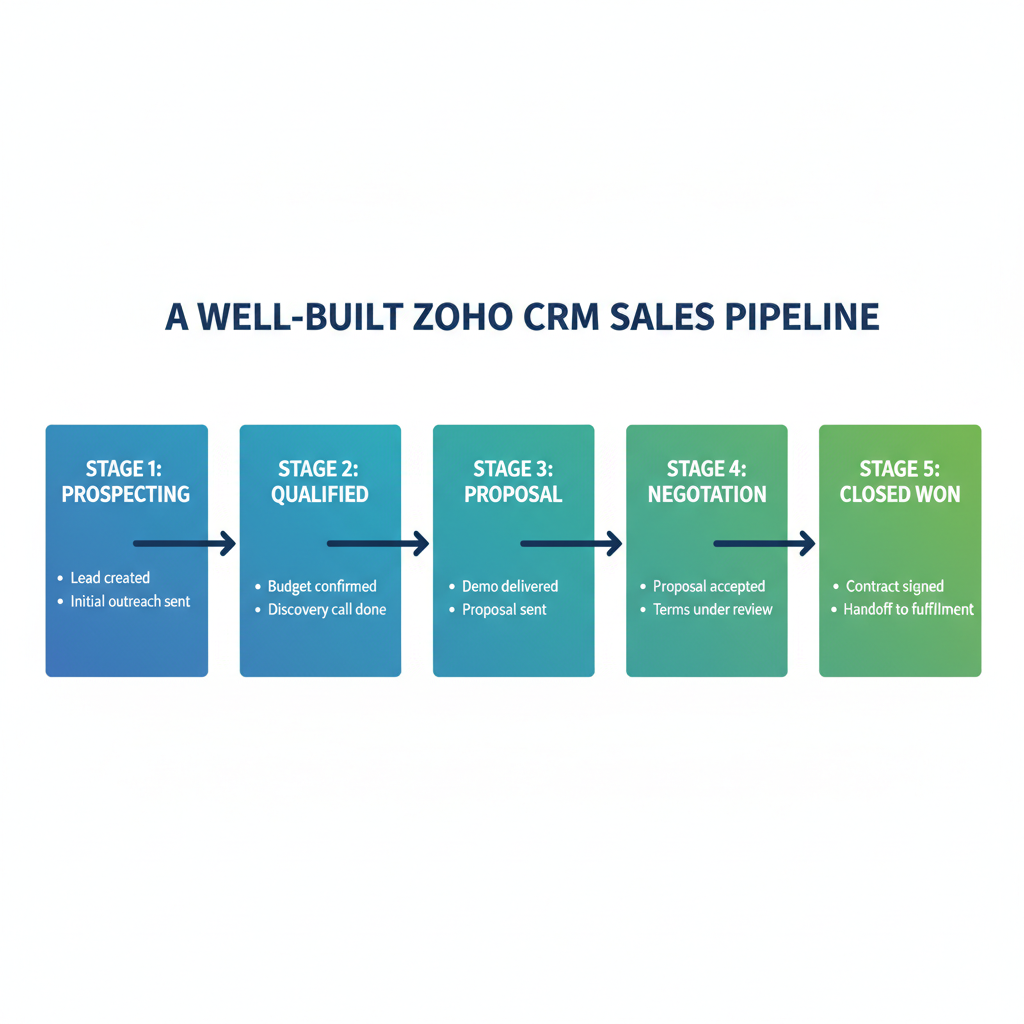
A well-configured CRM pipeline has four characteristics:
- Stages match reality. Every stage in the pipeline corresponds to a real, observable state in your sales process. Not aspirational stages you wish you had, not stages copied from a template — stages that describe where a specific deal actually is today.
- Stage transitions are clear. Everyone on the team agrees on what moves a deal from Stage A to Stage B. If two reps would give different answers about whether a deal is “In Negotiation” vs. “Pitch Sent,” the stages are ambiguous.
- The next action is obvious at each stage. A well-structured pipeline tells a rep what they should do next, not just where they are. If a deal is at “Sample Requested,” the next action is “Confirm sample shipping.” If a deal is at “PO Received,” the next action is “Send order confirmation within 24 hours.”
- It’s used in real decisions. Pipeline data that doesn’t influence decisions isn’t useful. If your weekly sales meeting reviews pipeline by stage and uses it to identify at-risk deals, the team will maintain it. If the pipeline is only audited quarterly for compliance, it will be out of date 80% of the time.
Mapping Your Actual Sales Process
Before configuring anything in Zoho CRM, map your actual sales process on paper (or whiteboard). Answer these questions:
- Where do deals start? A new wholesale inquiry, an inbound form submission, a referral from an existing account — what’s the trigger?
- What are the observable milestones? Not internal feelings (“we think they’re interested”) but tangible events: “line sheet sent,” “sample shipped,” “proposal received,” “purchase order received.” List 5–8 milestones.
- What’s the typical time at each stage? How long does a deal normally spend between “line sheet sent” and “sample requested”? Between “sample received” and “PO received”? These timelines inform your stall detection automations.
- What kills a deal at each stage? What are the most common reasons deals die before they reach PO? “Price too high,” “Buyer changed,” “Already working with a competitor,” “No budget this quarter.” These become your Closed Lost reason codes — essential for improving your process.
Configuring Pipeline Stages in Zoho CRM
Once you’ve mapped your process, configure it in Zoho CRM:
- Go to Setup → CRM → Deals → Pipelines
- Create a new pipeline or edit the default pipeline
- Add your stages in order, setting the probability for each (percentage chance of closing from this stage)
- Configure Closed Won and Closed Lost as terminal stages
- Add a “Closed Lost Reason” picklist field to the Deals module — required when a deal moves to Closed Lost
Example wholesale product pipeline:
- Prospect — 5% (identified, no contact yet)
- Contacted — 10% (outreach made, response received)
- Line Sheet Sent — 20% (catalog/pricing sent)
- Sample Requested — 40% (buyer requested samples)
- Sample Received — 50% (samples shipped and confirmed received)
- Negotiation — 65% (back and forth on terms, MOQ, pricing)
- PO Received — 90% (purchase order confirmed)
- Closed Won — 100%
- Closed Lost — 0% (with reason code: Price, Timing, Competitor, No Response)
Stage Entry Requirements
Zoho CRM allows you to configure required fields that must be filled in before a deal can move to a specific stage. This is one of the most powerful configuration options for data quality.
Examples:
- Moving to “Line Sheet Sent”: Require “Line Sheet Version” (which version you sent) and “Contact Email Verified” = Yes
- Moving to “PO Received”: Require “PO Number” and “Expected Ship Date”
- Moving to “Closed Lost”: Require “Closed Lost Reason” — this field is valuable for retrospective analysis and should never be optional
Be conservative with required fields — only require information that is genuinely needed for the next workflow step. Too many required fields create workarounds (reps put placeholder data to bypass the requirement) that corrupt data quality without improving it.
Multiple Pipelines for Multiple Sales Motions
If your business has more than one distinct sales motion — wholesale and corporate direct, for example, or inbound DTC and outbound wholesale — configure separate pipelines rather than trying to accommodate both in one pipeline.
In Zoho CRM, each deal can be assigned to a pipeline. Reps select the pipeline when creating a new deal. Reports and views can filter by pipeline. This keeps the wholesale team’s pipeline clean and relevant without mixing in DTC retention data that follows different stages and timelines.
Zoho CRM supports multiple pipelines on the Professional plan and above. If you’re on the Standard plan, you have one pipeline — keep it as clean and focused as possible.
Pipeline Automation
Three automations that keep your pipeline accurate without manual maintenance:
Stage-Triggered Task Creation
When a deal moves to “Line Sheet Sent,” automatically create a follow-up task due in 7 days: “Follow up with [Account] on line sheet.” When a deal moves to “Sample Received,” create a task due in 14 days: “Check in with [Account] on sample feedback.” These tasks prevent the pipeline from going cold at the critical stages before commitment.
Stall Detection
Scheduled daily workflow: if Stage Last Modified Date is more than X days ago (set X per stage — a deal can reasonably sit at “Prospect” for 30 days, but “Sample Received” sitting for 20+ days is a problem) AND Deal Status = Open, send alert to Deal Owner and manager. Catches stalled deals before they’re lost silently.
Closed Lost Reason Analysis Alert
Monthly workflow: aggregate Closed Lost deals from the last 30 days by Reason Code and send a summary report to the sales manager. When “Price” is the #1 Closed Lost reason for three consecutive months, it’s a signal to review pricing. When “No Response” dominates, it’s a prospecting quality problem. This keeps pipeline retrospection systematic rather than ad-hoc.
Pipeline Metrics
A healthy pipeline shows these characteristics in your metrics:
- Pipeline coverage ratio: Total pipeline value / Revenue target. For a business hitting its numbers, a 3:1 coverage ratio is typical (pipeline 3x the target you need to close). Below 2:1 suggests insufficient top-of-funnel activity.
- Average deal cycle time: Average time from deal creation to Closed Won. Track by pipeline and by deal source. If one channel has a cycle time 2x another, that’s a process signal worth investigating.
- Win rate by stage: Of all deals that entered “Sample Requested” this quarter, what % reached “Closed Won”? This stage-by-stage conversion rate tells you where deals are most at risk — which stage is the biggest funnel drop-off.
- Closed Lost rate and reasons: Monthly Closed Lost count and distribution by reason. A healthy pipeline has no single reason accounting for more than 40% of losses — if “Price” is 70% of losses every month, you have a pricing problem, not a sales problem.
Common Pipeline Mistakes
- Too many stages: More than 8–9 stages creates confusion about where a deal actually is. Consolidate ambiguous or rarely-used stages. If a stage has fewer than 10% of deals in it at any given time, it might not need to be a stage.
- Stages with no clear exit criteria: “In Negotiation” can last 3 days or 3 months. What moves a deal out of Negotiation? Define it explicitly — “PO received” or “final pricing agreed in writing.” Without clear exit criteria, deals accumulate in vague stages.
- No Closed Lost reason codes: Without loss reasons, you can’t learn from losses. Every Closed Lost record without a reason code is a lost learning opportunity. Make it required.
- Pipeline not reviewed in meetings: The fastest way to kill pipeline data quality is to never use it in team decisions. If the pipeline isn’t reviewed weekly in some format, it will be out of date within a month.
- Copying a SaaS pipeline template: “Prospect, MQL, SQL, Demo, Proposal, Closed Won” is a SaaS pipeline. If you sell physical products wholesale, this template maps to nothing in your actual process. Start from your own process, not a template.
Ready to build a Zoho CRM pipeline that fits your business? Learn about our Zoho CRM Implementation service or book a free discovery call to discuss your sales process.
Frequently Asked Questions
How many stages should a Zoho CRM pipeline have?
Typically 6–9 stages is optimal. Fewer than 5 doesn’t give enough visibility into where deals are. More than 10 creates confusion and data entry friction. Every stage should correspond to a distinct, observable state in your sales process with clear entry and exit criteria.
Can I have multiple pipelines in Zoho CRM?
Yes, starting from the Professional plan. Each deal is assigned to one pipeline. You can create separate pipelines for wholesale, corporate direct, inbound, or any other distinct sales motion. Reports and views can filter by pipeline so each team sees only their relevant pipeline.
How do I stop deals from going stale in the pipeline?
Configure stall detection: a daily workflow that identifies deals where Stage Last Modified Date exceeds a threshold for that stage, and sends an alert to the Deal Owner and manager. Also use stage-triggered task creation — when a deal moves to a new stage, automatically create a follow-up task with a due date to keep momentum.
What is pipeline coverage ratio and why does it matter?
Pipeline coverage ratio is total pipeline value divided by revenue target. A 3:1 ratio (pipeline is 3x the revenue you need to close) is a healthy benchmark for most B2B sales. Below 2:1 means you don’t have enough active opportunities to reliably hit targets — a signal to increase top-of-funnel activity rather than focus solely on closing existing deals.
Should I use the default Zoho CRM pipeline stages?
No. The default stages are generic and don’t fit most product or service businesses. Replace them with stages that reflect your actual sales process — the observable milestones your deals pass through on the way to a closed order. Start by mapping your process on paper, then configure the stages to match it.
Keep reading
- How to Set Up Zoho CRM for Canadian Companies: A Complete Configuration Guide
- How to Set Up Zoho CRM for a Product-Based Business (2026)
- How to Migrate from HubSpot to Zoho CRM Without Losing Data (2026)
- Shopify + Zoho CRM Integration: Complete Guide for Product Brands (2026)
Need hands-on help? Explore our Zoho Implementation →
