Zoho CRM is one of the most capable CRM platforms available for growing businesses — but a default out-of-the-box setup rarely matches how a product-based business actually works. Product brands don’t sell services through a standard B2B pipeline. They manage SKUs, wholesale accounts, retail relationships, reorders, and customer service requests that look nothing like a SaaS sales cycle.
This guide walks through exactly how to set up Zoho CRM for a product-based business: what to configure, in what order, and what to skip on the first pass. Whether you’re a Canadian brand selling DTC on Shopify, selling into retail, or managing a mix of both, this setup will give you a working CRM in four to six weeks.
Before You Start: Define Your Use Cases
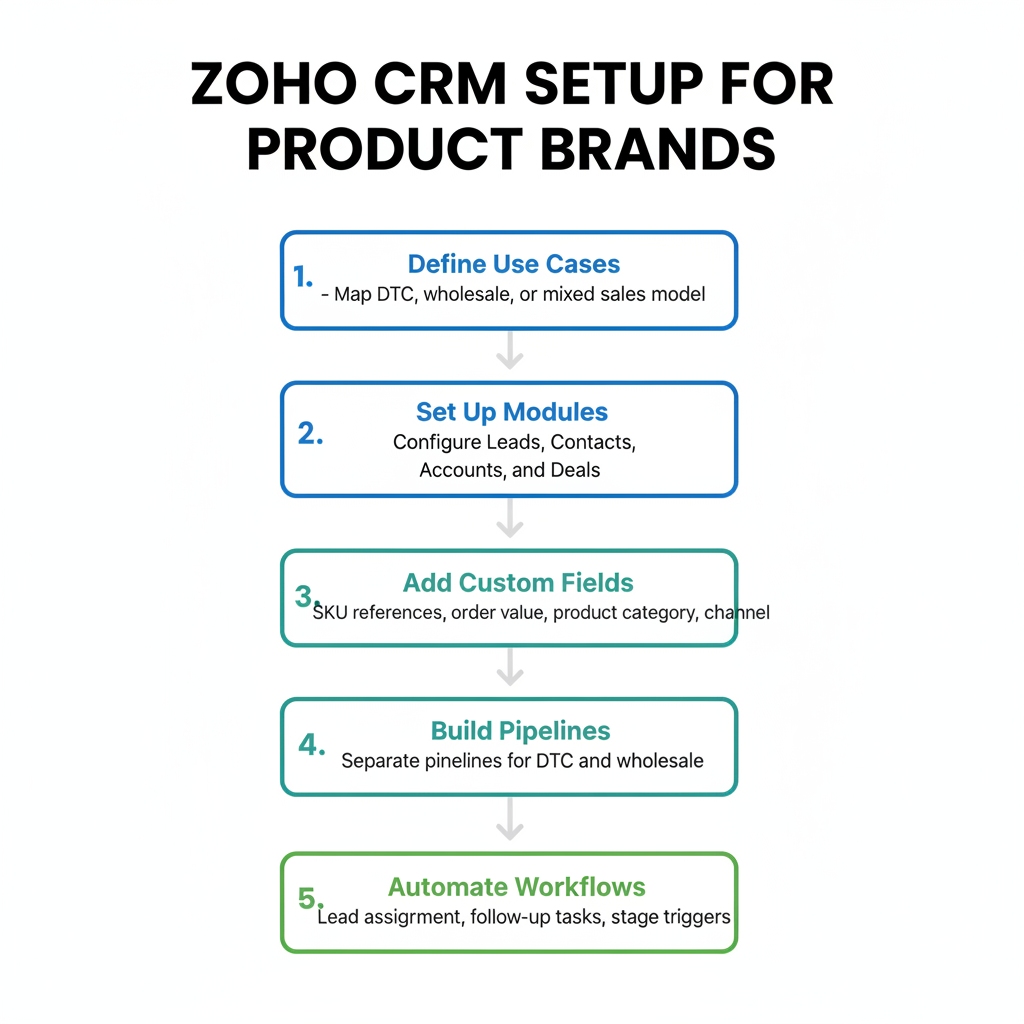
Before touching any configuration, answer three questions:
- Who are the records? For a DTC brand, your records are individual customers. For a wholesale brand, your records are retail buyers and accounts (stores). For a mixed model, you’ll need both — individual contacts linked to account records.
- What’s the pipeline? What stages does a new customer or buyer go through from first contact to repeat order? Map these out before setting up deal stages — they’ll differ significantly between DTC and wholesale.
- What do you need to track? What information about customers or accounts doesn’t live in Shopify? Relationship notes, credit terms, territory, buyer contact name at a retailer, last in-store visit date. List these — they become your custom fields.
A product brand that skips this step ends up with a CRM that maps to a default B2B sales template — Leads, MQLs, SQLs, Opportunities — none of which match how product sales actually work.
Module Setup: Leads, Contacts, Accounts, Deals
DTC-Only Brands
If you sell exclusively DTC (Shopify), simplify the module structure significantly. You don’t need Leads at all — Shopify customer records sync directly to Contacts. Disable or hide the Leads module to reduce clutter. Use Contacts for customers. Use Deals to track high-value re-engagement or VIP campaigns. Accounts can be hidden unless you’re tracking household or business buyers.
Wholesale / B2B Brands
Enable the full module set. Accounts represent stores or distributors. Contacts represent the individual buyer at each store. Leads represent inbound interest from new stores not yet in active conversation. Deals track the sales cycle from first pitch to confirmed first order.
Mixed DTC + Wholesale
Use Account Type to distinguish: set a picklist field on Accounts for “DTC Customer,” “Wholesale Account,” “Distributor,” “Retailer.” This lets you filter views and reports by business model. Individual Shopify customers sync to Contacts; wholesale accounts get their own Account record with linked Contacts for buyer relationships.
Custom Fields for Product Businesses
The default Zoho CRM fields are designed for generic B2B sales. For a product brand, you’ll want to add fields that reflect how your business actually works. Below are the most useful custom fields by module:
Contact / Customer Fields
- Customer Tier (VIP, Regular, At-Risk, Lapsed) — picklist
- Total Lifetime Orders — integer (synced from Shopify)
- Total Lifetime Spend — currency (synced from Shopify)
- Last Order Date — date (synced from Shopify)
- Preferred Product Category — picklist
- CS Notes — multi-line text
Account Fields (Wholesale)
- Account Type — picklist (Retailer, Distributor, Online Wholesale)
- Territory / Province — picklist
- Payment Terms — picklist (Net 30, Net 60, Prepaid)
- Buyer Name — text (main contact at the store)
- Last Order Date — date
- Annual Volume (CAD) — currency
- Distributor / Sales Rep — lookup to internal user
Deal Fields
- Order Type — picklist (First Order, Reorder, Expansion)
- SKUs Ordered — multi-line text or lookup to product catalog
- Expected Ship Date — date
- PO Number — text
Pipeline Configuration
For wholesale product brands, a typical pipeline looks like this:
- Prospect: Store identified, no contact made yet
- Contacted: Initial outreach sent (email, trade show, cold call)
- Pitch Sent: Line sheet, pricing sheet, or catalog delivered
- Sample Requested: Buyer has requested product samples
- Negotiation: Back-and-forth on terms, MOQ, pricing
- PO Received: Purchase order confirmed
- Active Account: Reorder relationship established
- Closed Lost: Did not convert; record reason
For DTC brands using the CRM to track high-value customers or VIP programs, simplify: Active, VIP, At-Risk, Lapsed, Re-engaged.
Set probability percentages for each stage so Zoho’s forecast reports are meaningful. Required fields at stage transitions (e.g., PO Number required to move to “PO Received”) enforce data quality without relying on discipline.
Core Automations
Start with five automations. These cover the highest-value cases without over-engineering the system in week one:
- New Contact Welcome: When a new Contact is created (via Shopify sync), send a welcome email sequence via Zoho Campaigns. Trigger: Contact Created, where Source = Shopify.
- Lapsed Customer Alert: When Last Order Date is more than 90 days ago and Customer Tier is not “Lapsed,” update Tier to “At-Risk” and create a task for a CS rep to follow up. Trigger: Scheduled, daily, filter on Last Order Date.
- Deal Stage Task: When a Deal moves to “Pitch Sent,” create a follow-up task due in 7 days assigned to the rep. Keeps pipeline from going stale.
- Wholesale Reorder Reminder: For Accounts with an Annual Volume above a threshold, create a task 90 days after Last Order Date to check in on reorder. Keeps key accounts active without manual tracking.
- CS Ticket to CRM Log: When a Zoho Desk ticket is resolved for a Contact, log the ticket summary as an Activity in CRM. Gives reps full context on customer history without switching tools.
Shopify Integration
Connecting Shopify to Zoho CRM is the most important integration for a product brand. The native approach is via Zoho Flow, Zoho’s integration platform. A basic setup syncs:
- New Shopify customer → new Zoho CRM Contact
- New Shopify order → update Contact’s Last Order Date and Total Lifetime Orders
- Shopify order tags → CRM Contact tags (useful for VIP segmentation)
- Shopify customer email unsubscribes → update Zoho CRM Contact email opt-out field
For more advanced syncing — full order history, product-level data, refunds — a third-party connector like Zapier or a custom integration via the Zoho CRM API and Shopify Webhooks gives more control. Document the data flow before building it: what syncs in which direction, what the de-duplication logic is, and which system wins on conflict.
Reporting Setup
Set up four reports on day one:
- Pipeline by Stage: Deal count and value by pipeline stage. Use to forecast revenue and identify where deals stall.
- Customer Tier Breakdown: Contact count by Customer Tier (VIP, Regular, At-Risk, Lapsed). Monitor monthly to track retention health.
- At-Risk Customers: All Contacts with Tier = “At-Risk” sorted by Total Lifetime Spend. This is your re-engagement priority list.
- Wholesale Account Revenue: Accounts sorted by Annual Volume, with Last Order Date. Quickly surfaces which accounts are slipping.
Team Training and Adoption
The most technically correct CRM setup fails if your team doesn’t use it. A few principles:
Train on workflows, not features. Don’t show the team every Zoho CRM module. Show them: “Here’s what you do when a new wholesale inquiry comes in. Here’s how to log a customer call. Here’s where to check the re-engagement list every Monday.” Scenario-based training beats feature walkthroughs.
Remove friction from data entry. If logging an activity requires navigating five menus, people won’t do it. Use Zoho’s email integration to auto-log emails. Use the Zoho CRM mobile app so reps can log calls on the go. Set up the most common record types as default views so the dashboard shows what’s actually useful.
Review together weekly. Run a 15-minute weekly team review of the pipeline and at-risk list. When the CRM drives decisions in meetings, adoption follows naturally. When it’s something reps fill in after the fact for no visible purpose, it dies.
Ready to implement Zoho CRM for your product-based business? Learn about our Zoho CRM Implementation service or book a free discovery call to discuss your specific requirements.
Frequently Asked Questions
Can Zoho CRM handle both DTC and wholesale in the same account?
Yes. Use Account Type as a picklist to distinguish DTC customers from wholesale accounts. Contacts link to both types of accounts. You can filter views, reports, and automations by Account Type to manage each segment differently within the same CRM instance.
How long does it take to set up Zoho CRM for a product business?
A basic setup — modules configured, custom fields added, Shopify integration live, five automations running, and the team trained — typically takes four to six weeks with a consultant. A DIY setup takes longer but is achievable for a technically capable ops person in six to eight weeks following a structured plan.
Does Zoho CRM integrate with Shopify natively?
Zoho CRM integrates with Shopify via Zoho Flow, which is included in Zoho One. Basic syncs (customers, order events) can be set up without code. Advanced syncs (full order history, product catalog, refunds) may require custom Zoho Flow flows or a third-party connector like Zapier.
What’s the biggest mistake in Zoho CRM setups for product brands?
Using the default pipeline and module structure designed for B2B service businesses. Product brands need a pipeline that reflects product sales cycles (pitch, sample, PO, reorder), not generic SaaS sales stages. The second biggest mistake is over-customizing before the team has adopted the basics — configure for your current workflows, not your hypothetical future ones.
How do I get my team to actually use Zoho CRM?
Train on scenarios, not features. Reduce data entry friction with email auto-logging and mobile access. Make CRM data visible in team meetings so it drives decisions. Adoption follows utility — if the CRM helps people do their job better, they’ll use it. If it feels like administrative overhead with no payoff, they won’t.
Keep reading
- Zoho CRM Pipelines: How to Build a Sales Process That Actually Works (2026)
- How to Set Up Zoho CRM for Canadian Companies: A Complete Configuration Guide
- How to Migrate from HubSpot to Zoho CRM Without Losing Data (2026)
- Shopify + Zoho CRM Integration: Complete Guide for Product Brands (2026)
Need hands-on help? Explore our Zoho Implementation →
