Shopify manages your orders. Zoho CRM manages your customer relationships. But when these two systems don’t talk to each other, you end up with customer data split across two platforms, no visibility into the connection between sales activity and revenue, and a support team that can’t see a customer’s purchase history when they open a ticket.
This guide walks through how to connect Zoho CRM to Shopify from end to end: what data to sync, which integration method to use, how to set up the connection, and how to verify it’s working correctly before relying on it.
Why Integrate Shopify and Zoho CRM
Before getting into the how, it helps to be clear on the value. Here is what a working Shopify–Zoho CRM integration enables:
- Customer 360 view: Every Shopify customer appears as a Contact in Zoho CRM, with their order history, total spend, and last purchase date visible alongside notes, emails, support tickets, and CRM activity.
- Retention and segmentation: Use Zoho CRM’s segmentation to build lists based on purchase behaviour — customers who haven’t ordered in 90 days, customers over $1,000 LTV, customers who bought a specific product. Trigger Zoho Campaigns emails or internal tasks from these segments.
- Wholesale pipeline visibility: For brands with wholesale accounts, map Shopify wholesale orders to CRM Account records to track reorder frequency and revenue by account without manual Excel updates.
- Support context: When a CS rep opens a Zoho Desk ticket, they see the customer’s full Shopify order history pulled from the CRM contact record — no switching tabs, no asking the customer for their order number.
Integration Options Overview
There are three main approaches to integrating Shopify and Zoho CRM:
Option 1: Zoho Flow (Recommended)
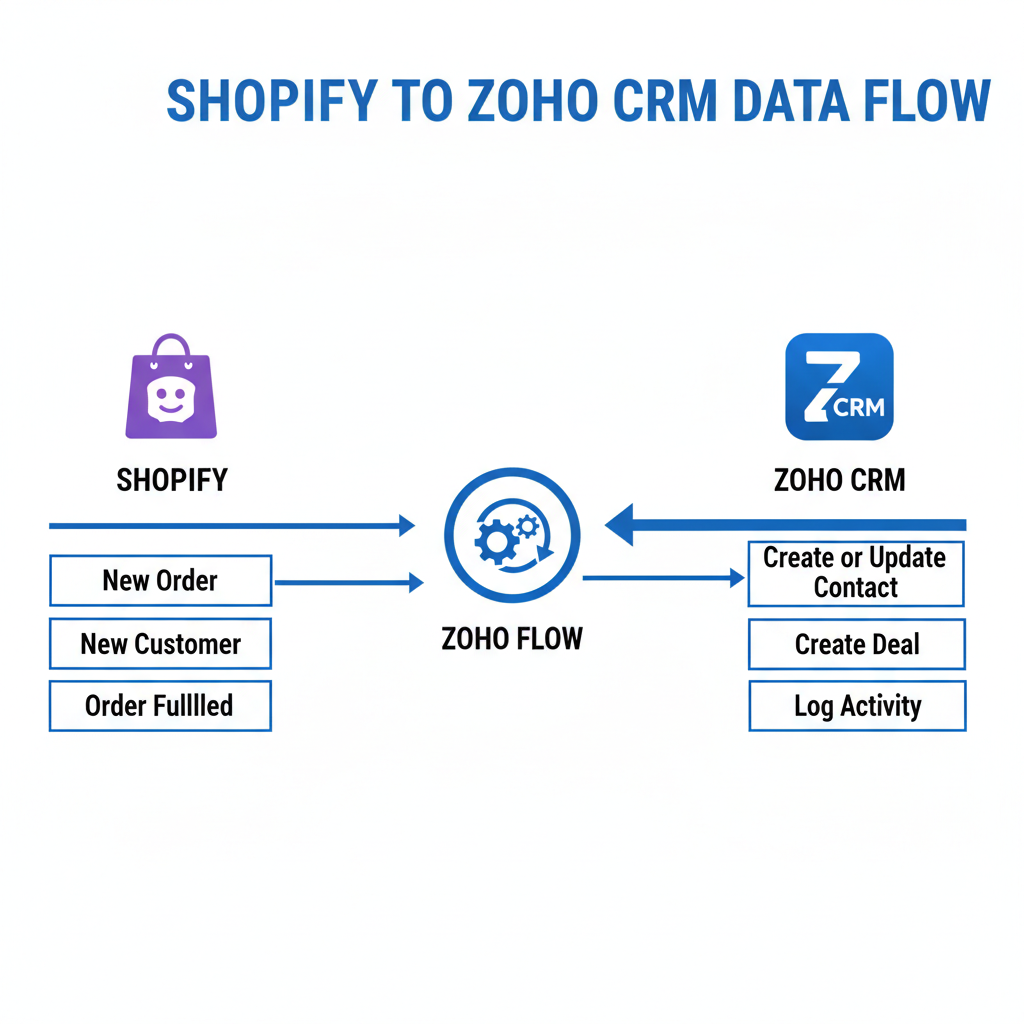
Zoho Flow is Zoho’s native integration platform, included in Zoho One. It provides a no-code interface for building trigger-based workflows between Shopify and all Zoho apps. The Shopify connector supports common triggers: new customer, new order, order fulfilled, order cancelled, refund created.
Best for: brands already on Zoho One who want to use the native tooling without adding a third-party tool.
Option 2: Zapier or Make
Third-party automation platforms with both Shopify and Zoho CRM connectors. More flexible than Zoho Flow for complex multi-step workflows, and better documentation for non-technical users. Additional monthly cost ($20–$150 USD/month depending on task volume).
Best for: brands not on Zoho One, or brands that need more complex workflow logic than Zoho Flow supports.
Option 3: Custom API Integration
Build a custom integration using Shopify’s REST API and Zoho CRM’s API. Maximum flexibility, best performance at high volumes, but requires a developer to build and maintain. Recommended for brands processing thousands of orders per day where event queue limits on automation platforms become a constraint.
Best for: high-volume brands with technical development resources.
Setting Up the Integration via Zoho Flow
Here is the step-by-step setup process using Zoho Flow:
Step 1: Connect Your Apps
- Log in to Zoho Flow (flow.zoho.com)
- Go to Connections → Create Connection → Select Shopify
- Enter your Shopify store URL and authorize the OAuth connection
- Create a second connection for Zoho CRM using your Zoho credentials
Step 2: Create Your First Flow — New Customer Sync
- Click Create Flow → Start from scratch
- Select Trigger: Shopify → Customer Created
- Add Action: Zoho CRM → Create or Update Contact
- Map fields: Shopify First Name → CRM First Name, Last Name → Last Name, Email → Email, Phone → Phone
- Add a condition: if a Contact with this email already exists in CRM, update the record rather than create a duplicate
- Save and activate the flow
- Test by creating a test customer in your Shopify store and verifying the Contact appears in Zoho CRM within 2–3 minutes
Step 3: Create Order Event Flow
- Create a new Flow
- Trigger: Shopify → Order Created
- Action 1: Zoho CRM → Search Contact by email
- Action 2: Zoho CRM → Update Contact — set Last Order Date = today, increment Total Orders count, update Total Lifetime Spend
- Action 3 (optional): Zoho CRM → Create Activity log — record order ID and total as a note on the Contact record
Step 4: Backfill Existing Customers
Zoho Flow only processes events going forward. To populate CRM with your existing Shopify customer base, use Shopify’s customer export (CSV) and Zoho CRM’s import tool. Map the same fields as your live integration. This is a one-time step — run it once before activating your live Flows, then let the Flows handle ongoing sync.
Data Mapping: What Syncs Where
Below is the recommended data mapping for a Shopify → Zoho CRM integration for a product brand:
| Shopify Field | Zoho CRM Field | Sync Direction |
|---|---|---|
| Customer Email | Contact Email | Shopify → CRM |
| First Name / Last Name | First Name / Last Name | Shopify → CRM |
| Phone | Phone | Shopify → CRM |
| Default Address | Mailing Address | Shopify → CRM |
| Orders Count | Total Lifetime Orders (custom) | Shopify → CRM |
| Total Spent | Total Lifetime Spend (custom) | Shopify → CRM |
| Last Order Date | Last Order Date (custom) | Shopify → CRM |
| Tags | CRM Tags / Contact Source | Shopify → CRM |
| Email Opt-In | Email Opt Out (inverse) | Bidirectional |
De-duplication and Conflict Resolution
The most common integration failure is duplicate records. Shopify may create a new customer record for a guest checkout with the same email as an existing customer. Zoho Flow may create a second CRM Contact if the first Flow run failed. Someone may have manually created a Contact in CRM before the integration was live.
De-duplication rules to implement:
- Use email as the primary match key — always search for existing CRM Contact by email before creating a new one
- In Zoho Flow, use the “Find or Create” pattern: search first, create only if no match found
- Run Zoho CRM’s built-in de-duplication tool (Setup → Data Administration → De-duplicate) after the initial backfill
- Set up a monthly alert: any Contact with a duplicate email address gets flagged for manual review
Advanced Syncs for Product Brands
Customer Tier Automation
Build a Zoho CRM workflow that runs nightly and assigns Customer Tier based on purchase behaviour: VIP (Total Spend > $500, 3+ orders), Regular (1–2 orders), At-Risk (no order in 90 days), Lapsed (no order in 180 days). These tiers drive your Zoho Campaigns email segments automatically.
Wholesale Order to Account Record
For brands with wholesale accounts buying via Shopify’s B2B feature or tagged with a wholesale tag, create an additional Flow that maps the order to the Account record in CRM (not just the Contact). This keeps your wholesale pipeline data accurate without manual updates.
Refund Logging
Trigger: Shopify Refund Created. Action: Add a note to the CRM Contact record with refund amount and reason. Useful for CS context — if a customer contacts you, your team can see they recently had a refund and adjust the conversation accordingly.
Testing the Integration
Before going live, run through this test checklist:
- Create a new test customer in Shopify → verify Contact created in Zoho CRM within 3 minutes
- Place a test order from the test customer → verify Last Order Date and Total Lifetime Orders updated in CRM Contact
- Create a duplicate customer (same email) in Shopify → verify CRM Contact updated, not duplicated
- Process a test refund → verify note logged on CRM Contact
- Unsubscribe the test customer in Shopify → verify Email Opt Out set in CRM
- Run the Zoho CRM de-dup report → verify zero duplicates
Ongoing Maintenance
Integrations require occasional maintenance. Shopify API versions update annually — review your Zoho Flow connections each January to verify compatibility with the current Shopify API version. Check the Zoho Flow error log monthly for any failed runs. Run the CRM de-dup report quarterly.
When you upgrade your Shopify plan or add a new Shopify app that touches customer data, re-test the integration — third-party apps sometimes modify customer records in ways that break existing sync logic.
Need help setting up your Shopify–Zoho CRM integration? Learn about our Zoho CRM Implementation service or book a free discovery call to discuss your integration requirements.
Frequently Asked Questions
Is there a native Shopify connector for Zoho CRM?
Zoho Flow (included in Zoho One) has a native Shopify connector. It supports the most common integration triggers and actions without code. For more complex syncs, Zapier, Make, or a custom API integration can extend coverage.
Does the Shopify–Zoho CRM integration sync historical orders?
Zoho Flow only processes new events going forward. To populate CRM with historical order data, export your Shopify customer CSV (which includes orders count and total spend) and import it into Zoho CRM. Run this backfill once before activating your live integration flows.
What happens when a customer changes their email in Shopify?
If your integration uses email as the match key (recommended), an email change in Shopify will trigger a flow that searches CRM by the old email, finds no match, and creates a new Contact. This creates a duplicate. To prevent this: use Shopify Customer ID as an additional match key in your flow, or build a deduplification workflow that merges on Shopify Customer ID.
Can I sync Shopify products to Zoho CRM?
You can sync Shopify products to Zoho Inventory (included in Zoho One), which maintains a product catalog. Zoho CRM can reference products from the Zoho Inventory catalog in deal line items. This is most useful for wholesale sales where individual deal records include specific SKUs and quantities.
How long does it take to set up the Shopify–Zoho CRM integration?
A basic integration (customer sync + order event tracking) takes one to two days with a consultant. A full integration (customer sync, order events, wholesale account mapping, customer tier automation, refund logging, Zoho Campaigns segmentation) typically takes three to five days. Add one week for testing and backfill data migration.
Keep reading
- Shopify + Zoho CRM Integration: Complete Guide for Product Brands (2026)
- How Extensiv Connects to Shopify, Zoho, and Your Tech Stack (2026)
- How to Migrate from HubSpot to Zoho CRM Without Losing Data (2026)
- How to Automate Vendor Management with Zoho CRM
Need hands-on help? Explore our Zoho Implementation →
