Migrating from HubSpot to Zoho CRM is one of the most common transitions we see among growing Canadian businesses. The reasons vary: HubSpot’s pricing scales aggressively as you add contacts and features; Zoho One offers a comparable CRM plus helpdesk, inventory, and analytics at a fraction of the cost; or the business has outgrown HubSpot’s SME feature set and needs a more configurable system.
Whatever the reason, the migration can be done cleanly. This guide walks through the full process: what data to export, how to prepare it, how to import it into Zoho CRM, how to recreate your automations, and how to verify the migration is complete before decommissioning HubSpot.
Pre-Migration Planning
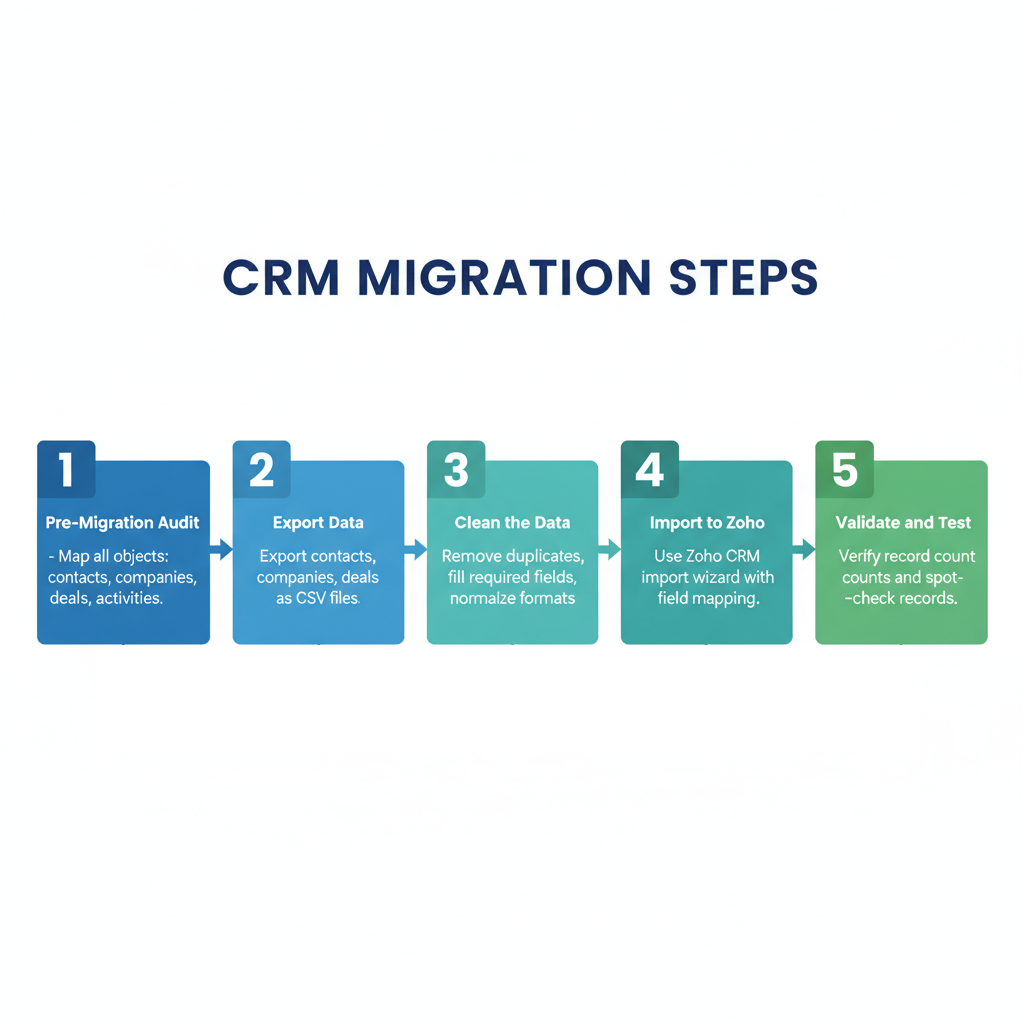
A successful migration starts with an audit of what you’re actually using in HubSpot. Most businesses discover they’re only actively using 30–40% of the features in their current CRM. Migrating everything, including abandoned workflows and duplicate contacts, just moves the mess to the new platform.
Before exporting anything, complete this audit:
- Active workflows: Which HubSpot workflows are currently live and running? List them with their trigger, conditions, and actions. These need to be recreated in Zoho CRM before cutover.
- Contact data quality: Pull a contacts report filtered by “Last Contacted.” Any contact with no activity in 24+ months should be reviewed for deletion rather than migrated — most are invalid or out-of-date.
- Deals pipeline: Which deals are in an active stage? These need to be migrated accurately. Closed-won deals from more than 12 months ago can often be archived rather than actively migrated if the only use case is historical reference.
- Custom properties: List all custom properties on Contacts, Companies, and Deals. Map each to the equivalent custom field you’ll create in Zoho CRM before importing.
- Integrations: What tools are currently integrated with HubSpot (Shopify, email, Slack, etc.)? These integrations need to be rebuilt in Zoho CRM or Zoho Flow post-migration.
Exporting Data from HubSpot
Contacts Export
- Go to HubSpot CRM → Contacts → All Contacts
- Click Actions → Export
- Select CSV format. Include all properties — you’ll clean up columns later
- HubSpot emails the CSV download link within a few minutes
Companies Export
Same process under Companies → All Companies. In Zoho CRM, Companies map to Accounts. Export all properties including associated contacts (these create the relationship links in your import).
Deals Export
Under Deals, export all deals including pipeline stage, amount, close date, and associated contact. Active deals (open pipeline) are high priority. Closed deals can be migrated for historical reference or archived.
Activities and Notes
HubSpot’s activity export (calls, emails, notes) is less clean than contact and deal exports. Export what you can, but accept that activity history is often lower fidelity after migration. The most important activities are recent ones on open deals — these are worth exporting and manually creating in Zoho as notes.
Cleaning and Preparing Your Data
Data cleaning is the most time-consuming step and the most important. Migrating dirty data into a new CRM just gives you a clean-looking system with bad data inside it.
Steps for cleaning the Contacts CSV:
- Remove duplicates: Sort by email and delete duplicate rows. Keep the most recently updated record.
- Remove invalid records: Delete contacts with no email address, no company, and no activity in the last 24 months. These are unlikely to have value in the new CRM.
- Standardize field formats: Phone numbers (format consistently), province/state (abbreviations vs. full names), country codes. Inconsistent formats cause import errors in Zoho CRM.
- Map column headers: Rename the HubSpot CSV column headers to match your Zoho CRM field names exactly. Zoho’s import tool uses column headers for auto-mapping. Matching names eliminate manual field mapping during import.
- Handle custom fields: Ensure every custom HubSpot property you’re migrating has a corresponding custom field already created in Zoho CRM before you import.
Importing Into Zoho CRM
Contacts Import
- In Zoho CRM, go to Contacts → Import
- Upload your cleaned Contacts CSV
- Map fields: Zoho will auto-map fields where column headers match. Review and manually map remaining fields.
- Set duplicate handling: “Update existing records” if email matches, “Skip” if no match (or “Add as new” if you prefer). For a clean migration with no existing Zoho contacts, “Add as new” is simpler.
- Select the module owner — assign imported contacts to the correct CRM user
- Run the import. Zoho will email you a completion report with success count and error rows.
Accounts (Companies) Import
Import Accounts before Deals. Use Account Name as the unique identifier. After Accounts are imported, re-import Contacts with Account Name mapped — Zoho will link Contacts to Accounts automatically.
Deals Import
Import Deals last. Map Deal Stage to your Zoho CRM pipeline stages (which should match your HubSpot stages or be renamed appropriately in the pre-migration setup). Map associated Contact and Account by email and company name respectively.
Recreating Automations and Workflows
This is the step most migrations underestimate. Your HubSpot workflows represent operational logic that your business runs on — lead nurturing sequences, internal task creation, deal stage notifications, contact property updates. All of this needs to be rebuilt in Zoho CRM.
Prioritize by impact:
- Revenue-critical workflows first: Any automation that touches active deals or triggers follow-up on high-value contacts. These need to be live in Zoho CRM on day one of the cutover.
- CS and notification workflows second: Workflows that create internal tasks, send notifications, or trigger CS handoffs.
- Nurture sequences third: Email sequences for leads can be rebuilt progressively over the first two weeks post-cutover.
Zoho CRM’s workflow builder (Setup → Automation → Workflow Rules) covers the same use cases as HubSpot’s workflows with a slightly different UI. Common components: trigger (record created, field updated, deal stage changed, scheduled), conditions (filter which records the rule applies to), and actions (send email, update field, create task, assign owner).
Email Sequences and Templates
HubSpot sequences (rep-triggered email outreach) map to Zoho CRM Email Sequences. Export your HubSpot sequence templates and recreate them in Zoho. If you were using HubSpot’s email marketing (Campaigns), the equivalent in Zoho One is Zoho Campaigns — set up the integration and migrate your contact lists and email templates.
Team Cutover
Set a hard cutover date. Announce it two weeks in advance. On cutover day:
- All new activities (calls, emails, notes) are logged in Zoho CRM only — not HubSpot
- Keep HubSpot in read-only mode for 30 days post-cutover so the team can reference historical data during the transition
- Disable HubSpot automations on cutover day to prevent duplicate actions from both systems firing
- Run a same-day training session on Zoho CRM basics for the whole team — even if they’ve had pre-training, a quick refresher on cutover day reduces support requests
Post-Migration Verification
Run this verification checklist in the first week post-cutover:
- Spot-check 20 Contact records — verify key fields match HubSpot source data
- Spot-check 10 Deal records — verify pipeline stage, amount, and associated contact are correct
- Trigger each active workflow manually and verify the expected actions execute
- Verify all integrations (Shopify, email, Zoho Desk) are live and syncing correctly
- Confirm no duplicate records exist using Zoho CRM’s de-dup tool
- Have each team member confirm they can access their assigned records and perform their core daily tasks
Cancel your HubSpot subscription after 30 days of successful operation in Zoho CRM. Export all HubSpot data before cancelling and archive it — you may need it for historical reference years later.
Planning a HubSpot to Zoho CRM migration? Learn about our Zoho CRM Implementation service or book a free discovery call to discuss your migration requirements.
Frequently Asked Questions
Can HubSpot data be migrated to Zoho CRM without losing data?
Yes. Contacts, companies, deals, custom properties, and notes can all be migrated. Activity history (calls, emails) is less clean in migration but can be exported and imported as notes. A structured migration with data cleaning before import minimizes data loss to near zero for the record types that matter most.
How long does a HubSpot to Zoho CRM migration take?
For a typical SME with 5,000–50,000 contacts, 6–12 weeks is realistic: 2 weeks for audit and planning, 2 weeks for Zoho CRM setup and custom field creation, 1 week for data cleaning and import, 2 weeks for automation rebuild, 1 week for testing, and a hard cutover. Larger datasets or more complex automation rebuilds extend the timeline.
Will we lose our HubSpot email history in the migration?
HubSpot email logs can be exported as activity records and imported into Zoho CRM as notes. The original email thread context may be lost, but a note indicating “Email sent on [date] — [summary]” preserves the key information. For active ongoing email conversations, manually migrate the most recent threads before cutover.
Why migrate from HubSpot to Zoho CRM?
The most common reasons: HubSpot’s pricing scales aggressively with contacts and features, making it expensive for growing businesses; Zoho One provides CRM plus helpdesk, analytics, accounting, and inventory under one license at a lower total cost; and Zoho’s configability and native integrations better fit product-based businesses with complex operations beyond CRM.
Do I need a consultant to migrate from HubSpot to Zoho CRM?
A technical ops person can do the basic data migration independently following a structured plan. The parts that benefit most from consultant experience are: workflow automation rebuild (Zoho’s automation syntax differs from HubSpot’s), integration reconnection (especially Shopify-to-Zoho), and change management for the team. A consultant typically cuts the migration timeline by 30–40% and reduces the risk of data errors.
Keep reading
- Shopify + Zoho CRM Integration: Complete Guide for Product Brands (2026)
- How to Automate Vendor Management with Zoho CRM
- Zoho CRM Automation: 10 Workflows Every Canadian SME Should Set Up (2026)
- How to Use Zoho CRM for Multi-Channel Sales Management (2026)
Need hands-on help? Explore our Zoho Implementation →
