Zoho CRM without automation is just a fancy contact database. The real value of a CRM — for any SME — is in what it does automatically: following up on leads before they go cold, alerting reps when a deal stalls, flagging at-risk customers before they churn, and logging activities without requiring manual entry. Zoho CRM’s workflow automation is capable and accessible. The question is which workflows to build first.
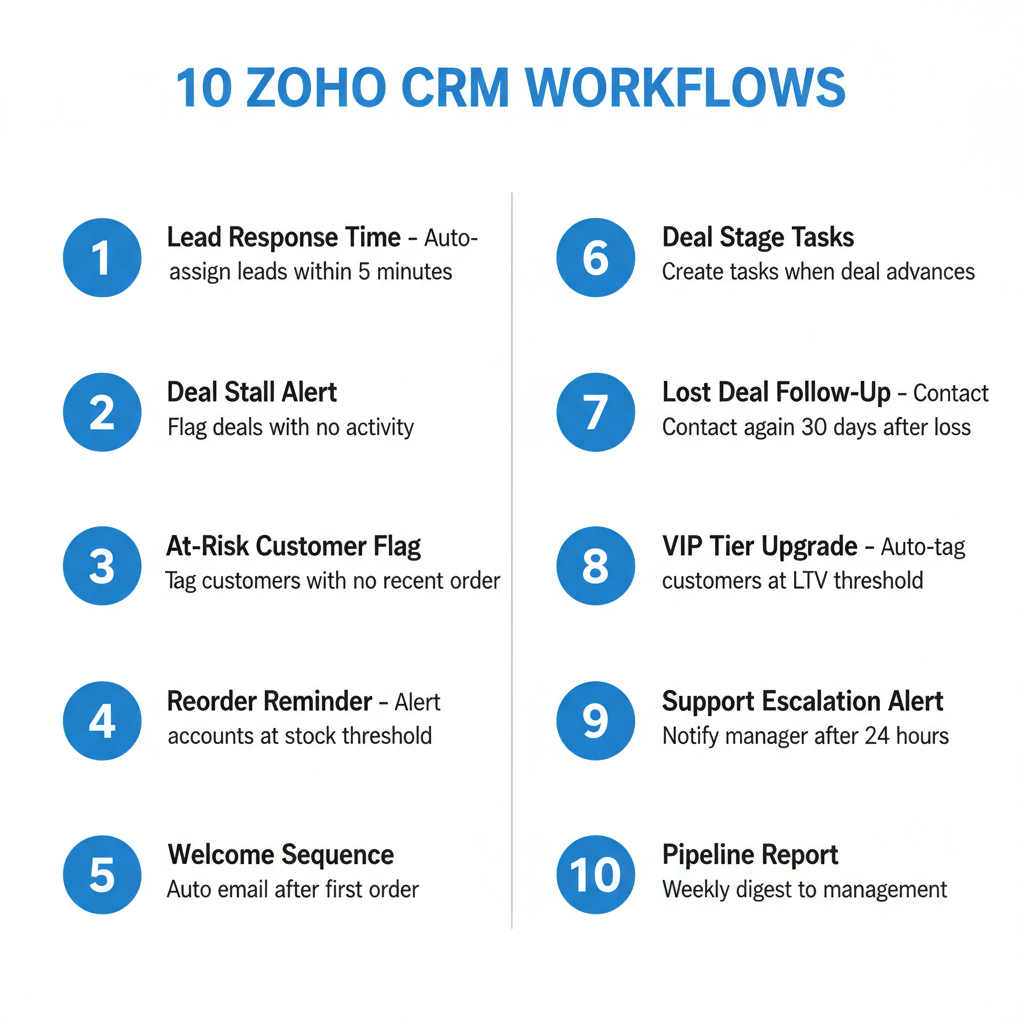
This guide covers the 10 Zoho CRM automation workflows that deliver the most value for Canadian SMEs. Each includes the trigger, conditions, and actions to configure.
1. Lead Response Time Automation
Research consistently shows that lead response time is one of the strongest predictors of conversion. Responding within 5 minutes is significantly more effective than responding within an hour. Most SMEs respond in hours or days because there’s no system to alert anyone immediately when a lead comes in.
Setup:
- Trigger: Lead Created (from web form, Zoho Forms, or Shopify Contact Form)
- Action 1: Assign Lead to the right rep (use assignment rules by territory or round-robin)
- Action 2: Create a task: “Follow up with [Lead Name] within 30 minutes” — due time: 30 minutes from now, assigned to the rep
- Action 3: Send email notification to rep: “New lead received: [Lead Name], [Company], [Phone]”
- Action 4 (optional): Send automated acknowledgment email to the lead confirming receipt
2. Deal Stall Alert
Deals that sit in the same pipeline stage for too long are at risk of going cold. This workflow flags stalled deals before they’re lost, prompting a rep to take action while there’s still engagement.
Setup:
- Trigger: Scheduled — runs daily
- Conditions: Deal Status = Open AND Stage Last Modified Date > X days ago (set X based on your typical sales cycle — 7 days for fast-moving deals, 14 for longer cycles)
- Action 1: Update Deal custom field: “Stalled” = Yes
- Action 2: Send email to Deal Owner: “Deal [Deal Name] has not moved in [X] days. Review and update.”
- Action 3 (optional): Add Deal to a “Stalled Deals” view for manager visibility
3. At-Risk Customer Flag
For e-commerce and product brands, customer retention is often more valuable than acquisition. This workflow identifies customers who haven’t ordered recently and flags them before they’re fully lapsed — when re-engagement is still possible.
Setup:
- Trigger: Scheduled — runs daily
- Conditions: Contact Last Order Date < 75 days ago AND Customer Tier ≠ "At-Risk" AND Customer Tier ≠ "Lapsed"
- Action 1: Update Contact Customer Tier to “At-Risk”
- Action 2: Create task for Contact Owner: “Re-engage [Contact Name] — no order in 75 days”
- Action 3 (optional): Add Contact to a Zoho Campaigns list for a win-back email sequence
4. Reorder Reminder for Wholesale Accounts
Wholesale accounts don’t always reorder on a consistent schedule. Without a proactive reminder system, accounts slip silently — you find out they moved to a competitor six months after the last order. This workflow ensures no account goes uncontacted past their expected reorder window.
Setup:
- Trigger: Scheduled — runs weekly
- Conditions: Account Type = “Wholesale” AND Last Order Date < 90 days ago AND Account Status = "Active"
- Action 1: Create task for Account Owner: “Check in with [Account Name] — no reorder in 90 days”
- Action 2 (optional): Send internal Zoho Cliq notification to sales channel with account name and last order date
5. New Customer Welcome Sequence
Every new customer should receive a structured welcome experience. Not a generic transactional email — a thoughtful sequence that reinforces their decision to buy, sets expectations, and opens the door to a repeat purchase.
Setup:
- Trigger: Contact Created (from Shopify sync, first order)
- Condition: Contact Source = “Shopify” AND Total Lifetime Orders = 1
- Action 1: Add Contact to Zoho Campaigns “New Customer Welcome” sequence
- Action 2: Set Contact Customer Tier = “Regular”
- Action 3: Tag Contact with “New Customer [Month-Year]” for cohort tracking
6. Deal Stage Progression Task
When a deal moves to a new pipeline stage, the next action is often predictable. Instead of relying on the rep to remember what happens next, automate the task creation based on stage change.
Setup (repeat for each critical stage transition):
- Trigger: Deal Stage Updated to “Pitch Sent”
- Action: Create task for Deal Owner: “Follow up on pitch with [Account Name]” — due in 5 business days
- Trigger: Deal Stage Updated to “Sample Requested”
- Action: Create task: “Confirm sample shipment tracking for [Account Name]” — due in 2 days
- Trigger: Deal Stage Updated to “PO Received”
- Action: Create task: “Send order confirmation and expected ship date to [Account Name]” — due in 1 day
7. Contact Owner Assignment by Territory
For businesses with multiple reps or territory-based sales, automatic assignment by province or postal code ensures new contacts go to the right rep instantly — not to a shared unassigned queue that nobody monitors.
Setup:
- Trigger: Contact Created
- Conditions + Actions (one rule per territory):
- If Province = “Ontario” → Assign to [Ontario Rep]
- If Province = “British Columbia” → Assign to [BC Rep]
- If Province = “Alberta” or “Saskatchewan” or “Manitoba” → Assign to [Prairies Rep]
- If Province = “Quebec” → Assign to [Quebec Rep]
- Default (no match) → Assign to [National Sales Manager]
8. VIP Customer Identification
High-LTV customers deserve different treatment: priority CS routing, early access to new products, relationship check-ins. This workflow automatically identifies and flags them based on objective criteria.
Setup:
- Trigger: Scheduled — runs daily
- Conditions: Total Lifetime Spend > [threshold, e.g., $1,000 CAD] AND Total Lifetime Orders >= 3 AND Customer Tier ≠ “VIP”
- Action 1: Update Customer Tier to “VIP”
- Action 2: Add to Zoho Campaigns VIP email segment
- Action 3: Create task for Contact Owner: “Review and personalize relationship with VIP customer [Name]”
9. CS Ticket to CRM Activity Log
When a CS ticket is resolved in Zoho Desk, the resolution context should be visible in CRM — so sales or ops can see if a customer has had recent problems before making an outreach or upsell decision. This workflow logs ticket resolution as a CRM activity automatically.
Setup (via Zoho Desk automation, not Zoho CRM workflow):
- Trigger: Ticket Status Updated to “Closed” (in Zoho Desk)
- Action: Via Zoho CRM integration — add Note to linked CRM Contact: “CS Ticket [Ticket #] resolved on [Date]. Issue: [Ticket Subject]. Resolution: [Resolution]”
10. Quote Follow-Up Automation
For businesses that send quotes or proposals, following up is critical — and easily forgotten. This workflow ensures no quote goes unacknowledged after a set number of days.
Setup:
- Trigger: Scheduled — runs daily
- Conditions: Quote Status = “Sent” AND Quote Created Date > 5 days ago AND related Deal Stage ≠ “Closed Won” AND ≠ “Closed Lost”
- Action 1: Create task for Deal Owner: “Follow up on quote for [Account Name] — sent 5+ days ago”
- Action 2 (optional): Send automated email to prospect: “Just following up on the proposal we sent — do you have any questions?”
Implementation Tips
Build these workflows in priority order — start with the two or three that address your most pressing operational gaps. Test each workflow on a small set of records before enabling it broadly. Review your active workflows quarterly and disable any that are creating noise (too many low-value notifications) or that your process has evolved past.
The goal is not to automate everything — it’s to automate the repetitive, time-sensitive tasks that fall through the cracks without a system. The workflows above cover the cases that, collectively, cost most SMEs the most revenue through missed follow-up, poor retention, and reactive rather than proactive account management.
Need help building your Zoho CRM automation setup? Learn about our Zoho CRM Implementation service or book a free discovery call.
Frequently Asked Questions
How many workflow rules can I create in Zoho CRM?
Zoho CRM’s workflow limit depends on your plan. The Professional plan allows 20 active workflow rules per module. Enterprise and Ultimate allow unlimited rules. Most SMEs build 10–30 total workflows across all modules, well within standard plan limits.
Can Zoho CRM automations trigger Zoho Campaigns emails?
Yes. Zoho CRM workflows can add contacts to Zoho Campaigns lists or directly trigger Zoho Campaigns email sequences. The integration is native within the Zoho One suite — no additional connectors required.
What is the difference between Zoho CRM workflows and Zoho Flow?
Zoho CRM workflows automate actions within Zoho CRM (create tasks, update fields, send emails from CRM). Zoho Flow connects Zoho CRM to external apps and other Zoho products (Shopify, Zoho Desk, Zoho Campaigns). Use CRM workflows for internal CRM automation; use Zoho Flow for cross-app automation.
Can I test a Zoho CRM workflow before enabling it?
Yes. Zoho CRM allows you to test a workflow rule on a single record before activating it broadly. In the workflow setup, use the “Test Workflow” option — select a specific record and run the workflow to verify the actions execute correctly without affecting all records.
Do Zoho CRM workflows run in real time?
Trigger-based workflows (on record creation or field update) run in real time — typically within seconds of the triggering event. Scheduled workflows run at the configured interval (daily, weekly, hourly). There may be a short processing queue delay during peak usage, but for practical purposes, trigger-based workflows are effectively real-time.
Keep reading
- How to Migrate from HubSpot to Zoho CRM Without Losing Data (2026)
- Shopify + Zoho CRM Integration: Complete Guide for Product Brands (2026)
- How to Automate Vendor Management with Zoho CRM
- How to Use Zoho CRM for Multi-Channel Sales Management (2026)
Need hands-on help? Explore our Zoho Implementation →
